


文档编辑是我们日常工作中的一项基本任务,我们经常发现自己渴望能有一些工具来减轻重复性工作的负担。在本文中,我们将创建一个宏,用于替换文档中选中的单词。

构建宏
首先,我们在文档编辑器中访问当前文件。然后,我们锁定所选文本并捕获其值。这个范围就是我们要查找和替换的字词:
const oDocument = Api.GetDocument();
const oRange = oDocument.GetRangeBySelect();
const rawText = oRange.GetText();
然后删除选中的文本:
oRange.Delete();
我们将要查找的单词赋值给变量 wordToFind,将要替换的单词赋值给 replacementWord:
// Define the word to find and the word to replace it with
const wordToFind = "oldWord"; // Replace "oldWord" with the word you want to find
const replacementWord = "newWord"; // Replace "newWord" with the word you want to replace it with
我们对 rawText(选定范围内的文本)应用正则表达式,查找 wordToFind 的所有实例,并用 replacementWord 将其替换。带有 "g "标志的正则表达式可确保所有出现的词都被替换。修改后的文本将存储在 cleanedText 变量中:
// Use regular expression to find and replace the word
const cleanedText = rawText.replace(new RegExp(wordToFind, "g"), replacementWord);
查找和替换完成后,我们使用 Api.CreateParagraph() 在文档中创建一个新段落。在这个段落中,我们添加了替换后的文字。最后,我们将修改后的段落插入文档:
// Insert the cleanedText with the original paragraph structure
const oParagraph = Api.CreateParagraph();
oParagraph.AddText(cleanedText);
oDocument.InsertContent([oParagraph]);
整个宏程序如下:
(function()
{
const oDocument = Api.GetDocument();
const oRange = oDocument.GetRangeBySelect();
const rawText = oRange.GetText();
oRange.Delete();
// Define the word to find and the word to replace it with
const wordToFind = "oldWord"; // Replace "oldWord" with the word you want to find
const replacementWord = "newWord"; // Replace "newWord" with the word you want to replace it with
// Use regular expression to find and replace the word
const cleanedText = rawText.replace(new RegExp(wordToFind, "g"), replacementWord);
// Insert the cleanedText with the original paragraph structure
const oParagraph = Api.CreateParagraph();
oParagraph.AddText(cleanedText);
oDocument.InsertContent([oParagraph]);
})();
现在让我们运行宏,看看它是如何工作的!
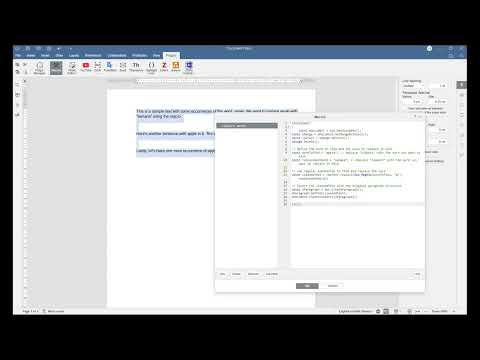
我们希望这个宏能成为您的有用工具,简化您的文档编辑工作。ONLYOFFICE 宏旨在将您的工作流程提升到新的高度。
不要错过利用ONLYOFFICE API强大功能的机会。我们广泛的API方法库是您将想法变为现实的关键。如果您有任何问题或创新理念,我们鼓励您与我们分享。我们非常重视您的意见,也非常期待与您合作的可能性。祝您在探索过程中一切顺利!



 渝公网安备50010702505508