


虽然 ChatGPT 4 现在提供了更强大的功能,但一些用户仍然更喜欢 ChatGPT 3.5,因为它的令牌成本更低。然而,ChatGPT 3.5 缺乏文件上传功能,导致用户无法分析数据表。在本文中,我们将演示如何创建 ONLYOFFICE 宏来克服这一限制,使您能够使用 OpenAI API 分析电子表格。

关于宏
为了解决这一限制,我们的宏遵循以下步骤:
从电子表格中收集选定的单元格值。
将这些值编译成数组。
将数组转换为字符串。
使用获取请求将其发送到 Node.js 代理服务器。
服务器从请求正文中检索数组。
然后利用 OpenAI 库向 OpenAI 发送 API 请求。
收到响应后,服务器将其发送回响应对象中的宏。
有关设置代理服务器的详细说明(包括完整代码),请查看我们的另一篇教程,其中演示了如何创建一个宏,利用 OpenAI 的数据填充电子表格。
注意!请注意,由于 ChatGPT 3.5 模型的令牌限制为 4096 个令牌,因此此宏最适合中等大小的表格,通常为 50 行左右。
构建宏
首先,我们在电子表格中检索当前选定的范围:
// Get the selected range using ONLYOFFICE API
var selection = Api.GetSelection();
然后,我们创建一个名为 rowData 的空数组,用于存储从选定单元格中收集的数据:
// Initialize an array to store all data
var rowData = [];
我们使用 ForEach 循环遍历所选范围中的每个单元格。对于每个单元格,我们使用 GetValue 方法获取其值,然后将该值添加到 rowData 数组中:
// Use ForEach to iterate through the selected range
selection.ForEach(function (cell) {
// Retrieve the cell value using ONLYOFFICE API
var cellValue = cell.GetValue();
// Add cell value to the rowData array
rowData.push(cellValue);
});
然后,我们将 rowData 数组中收集的值转换成一个字符串,其中的值用逗号分隔:
// Merge the values in rowData and separate them by commas
var rowDataAsString = rowData.join(',');
我们创建一个名为 requestData 的对象:
// Prepare the data to send in the POST request
var requestData = {
prompt: `analyze this data ${rowDataAsString}`, // Use the merged string here
apiKey: '<APIkey>', // Replace with your API key
};
prompt 字段包含用于分析的单元格值合并字符串。
apiKey 字段包含 Node.js 服务器用来验证传入的获取请求的 API 密钥。
然后,我们使用 fetch 函数向指定的 URL 发送 POST 请求:
fetch('http://localhost:3000/completion', {
method: 'POST',
headers: {
'Content-Type': 'application/json',
},
body: JSON.stringify(requestData),
})
我们在处理 API 响应时,首先会将其转换为 JSON 格式,将数据记录到控制台,并执行错误处理,以防 POST 请求出现任何问题:
.then(function (response) {
return response.json();
})
.then(function (data) {
// Log the API response
console.log(data);
})
.catch(function (error) {
// Handle any errors that occur during the fetch
console.error('Error:', error);
});
整个宏代码如下:
(function()
{
// Get the selected range using ONLYOFFICE API
var selection = Api.GetSelection();
// Initialize an array to store all data
var rowData = [];
// Use ForEach to iterate through the selected range
selection.ForEach(function (cell) {
// Retrieve the cell value using ONLYOFFICE API
var cellValue = cell.GetValue();
// Add cell value to the rowData array
rowData.push(cellValue);
});
// Merge the values in rowData and separate them by commas
var rowDataAsString = rowData.join(',');
// Prepare the data to send in the POST request
var requestData = {
prompt: `analyze this data ${rowDataAsString}`, // Use the merged string here
apiKey: '<APIkey>', // Replace with your API key
};
// Send the data to the API (replace the URL with your OpenAI API endpoint)
fetch('http://localhost:3000/completion', {
method: 'POST',
headers: {
'Content-Type': 'application/json',
},
body: JSON.stringify(requestData),
})
.then(function (response) {
return response.json();
})
.then(function (data) {
// Log the API response
console.log(data);
})
.catch(function (error) {
// Handle any errors that occur during the fetch
console.error('Error:', error);
});
})();
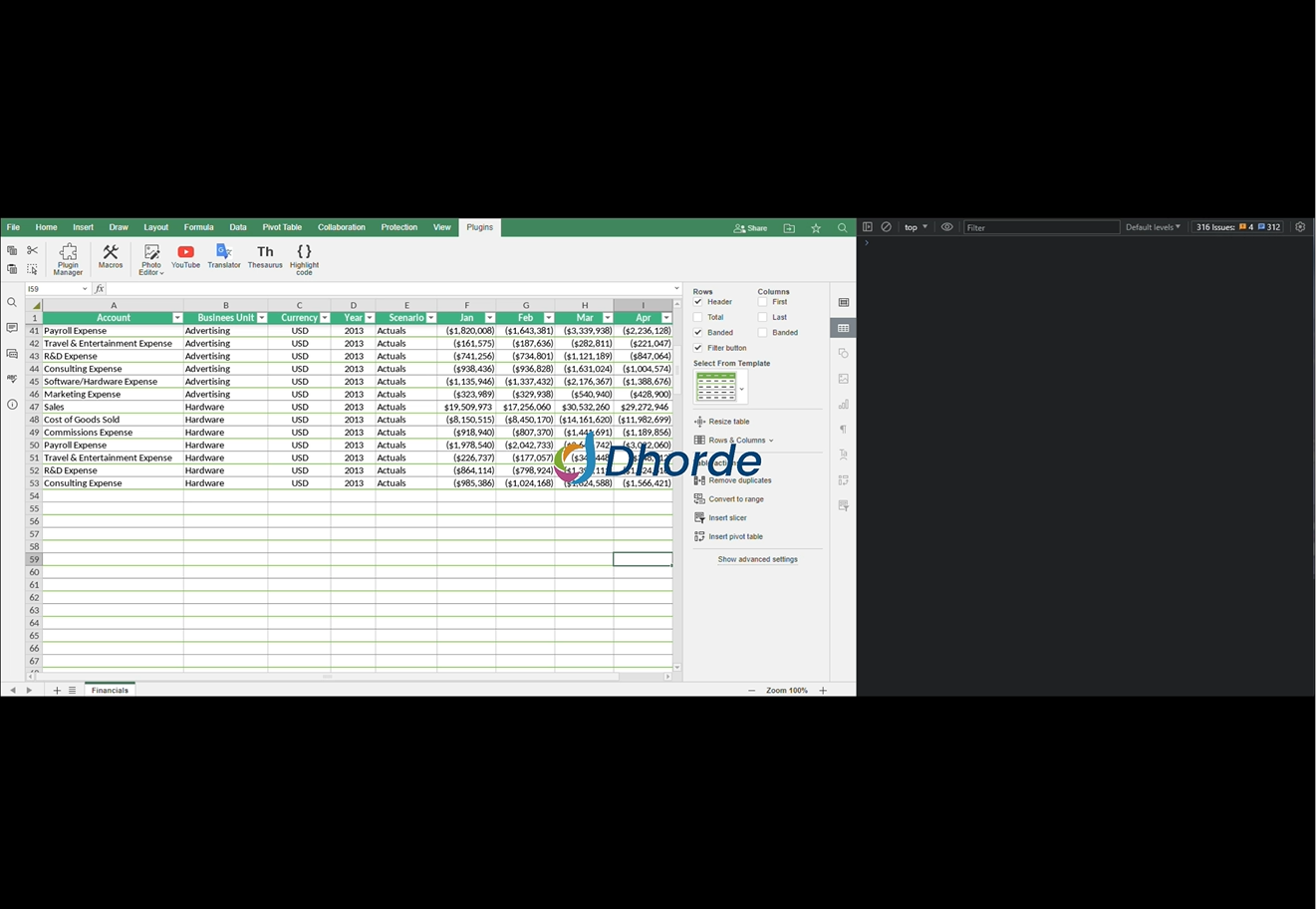
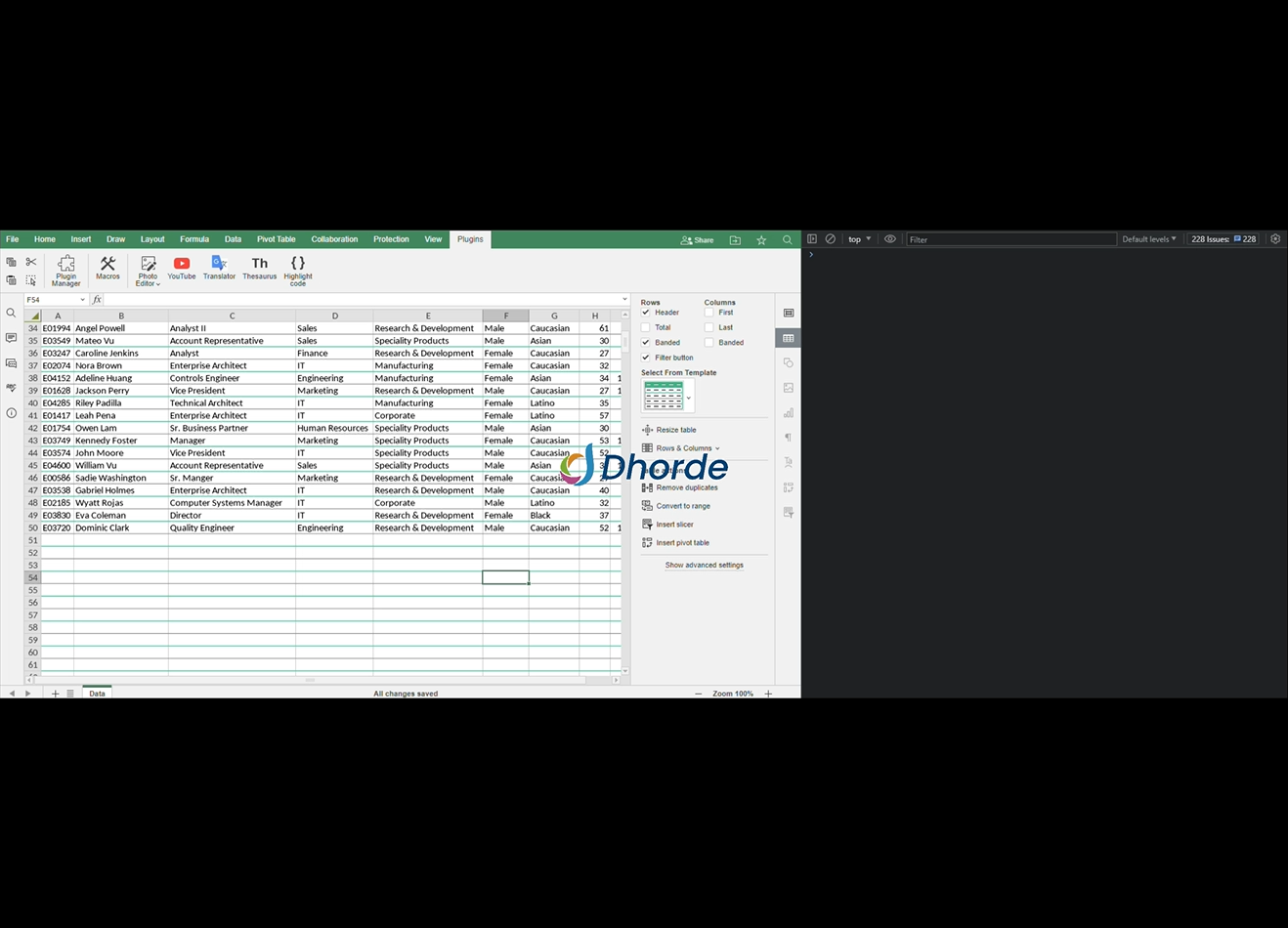
现在,让我们运行宏,看看它是如何工作的!
财务数据表示例:
员工数据表范例:
我们希望本文中分享的见解能有助于提高工作效率。我们鼓励您在日常工作中探索并实施我们的各种应用程序接口方法。
如果您有任何疑问或创意,请随时与我们分享。我们对合作的可能性持开放和热情的态度。祝您在探索过程中一切顺利!

 渝公网安备50010702505508