


为什么选择 Node.js 和 WebAssembly?
定制 DevExpress Web 报告(在后端应用程序中)可能会给刚接触 .NET 的前端网络开发人员带来独特的挑战。在这篇文章中,我们将向您展示 .NET 和 WebAssembly 的集成如何帮助您应对这些挑战并提高应用程序的整体安全性/性能。
传统的报告开发/定制方法需要.NET 和相关语言方面的专业知识......而 WebAssembly 则不需要。通过在 WASM 环境中运行 .NET 应用程序,开发人员无需深入了解 .NET 知识,即可将交互式报告集成到 Node.js 应用程序中。
这种集成的第二个好处与安全性有关。WebAssembly 在隔离的环境中运行代码。因此,开发人员可以完全控制磁盘、网络和其他关键资源。这种隔离的执行环境可以降低与未经授权访问相关的风险。
在最近的 .NET 更新中,微软一直致力于 .NET 与 WebAssembly 的整合。在 .NET 7 中,Micrsooft 引入了 CLI 模板(如 wasmconsole 和 wasmbrowser),并允许开发人员创建控制台和 Web 应用程序,这些应用程序可在托管 .NET 运行时的沙盒 WebAssembly 环境中运行。有关这方面的更多信息,请参阅以下教程和视频:
在 .NET 7 中的任何 JavaScript 应用程序中使用 .NET
.NET ❤️'s WebAssembly in .NET 7 | .NET Conf 2022
随着 .NET 8 的发布,应用程序代码在编译时可直接转换为 WebAssembly。这一变化带来了与性能相关的巨大改进,其特点是延迟更短,用户界面响应更快。
亲自体验
如果您是一位刚接触.NET的前端网络开发人员,并且对本篇博文的主题感兴趣,我们建议您创建一个应用程序,让您可以创建 DevExpress 报告并将其导出为 PDF 文件。
开始之前
安装 .NET 8 SDK。
安装最新的 CLI 模板:
>dotnet new install Microsoft.NET.Runtime.WebAssembly.Templates::8.0.3
安装 wasm-tools 工作负载:
>dotnet workload install wasm-tools
创建简单的 Wasmconsole 应用程序
运行以下命令创建 Wasm-exporter 应用程序示例:
>dotnet new wasmconsole -o wasm-exporter
示例项目准备就绪后,导航至项目文件夹:
>cd wasm-exporter
Program.cs 文件包含以下代码:
using System;
using System.Runtime.InteropServices.JavaScript;
Console.WriteLine("Hello, Console!");
return 0;
public partial class MyClass
{
    [JSExport]
    internal static string Greeting()
    {
        var text = $"Hello, World! Greetings from node version: {GetNodeVersion()}";
        return text;
    }
    [JSImport("node.process.version", "main.mjs")]
    internal static partial string GetNodeVersion();
}
如您所见,JavaScript 导入了 Greeting .NET 函数,而 .NET 本身则导入了一个显示当前安装的 Node.js 版本的函数。
反过来,main.mjs 文件中的代码会加载 .NET 运行时,并将 JavaScript 函数导入 WebAssembly:
import { dotnet } from './_framework/dotnet.js'
const { setModuleImports, getAssemblyExports, getConfig } = await dotnet
    .withDiagnosticTracing(false)
    .create();
setModuleImports('main.mjs', {
    node: {
        process: {
            version: () => globalThis.process.version
        }
    }
});
const config = getConfig();
const exports = await getAssemblyExports(config.mainAssemblyName);
const text = exports.MyClass.Greeting();
console.log(text);
await dotnet.run();
使用 dotnet build 命令构建此应用程序后,请按照通常运行 node.js 应用程序的方式运行它,以查看两个函数的执行结果:
>dotnet build
>node main.mjs
Hello, World! Greetings from node version: v18.12.1
Hello, Console!
指定配置设置以创建 DevExpress 报告
如果运行的是未安装 DevExpress 的 macOS/Linux 或 Windows,请执行以下操作:
创建一个 nuget.config 文件:
dotnet new nugetconfig
删除 nuget.config 文件中的 <clear /> 行
更新 <add key="nuget" value="https://api.nuget.org/v3/index.json" /> 行,并将 nuget 关键字替换为自定义 feed 名称,将值替换为从 DevExpress NuGet Gallery 页面获取的 DevExpress NuGet Feed URL。
完成后,安装在 WebAssembly 应用程序中创建文档所需的 NuGet 软件包:
dotnet add package Newtonsoft.Json
dotnet add package DevExpress.Drawing.Skia --version 23.2.*-*
dotnet add package DevExpress.Reporting.Core --version 23.2.*-*
dotnet add package SkiaSharp.HarfBuzz --version 2.88.7
dotnet add package SkiaSharp.NativeAssets.WebAssembly --version 2.88.7
dotnet add package HarfBuzzSharp.NativeAssets.WebAssembly --version 2.8.2.4
dotnet add package SkiaSharp.Views.Blazor --version 2.88.7
在项目配置文件(wasm-exporter.csproj)中添加本地 SkiaSharp 依赖项:
<ItemGroup>
    <NativeFileReference Include="$(HarfBuzzSharpStaticLibraryPath)\2.0.23\*.a" />
</ItemGroup>
指定生成的可执行文件和库的路径:
<wasmappdir>./result</wasmappdir>
至此,我们的准备工作已经完成,可以开始编码了。
我们的应用程序由两部分组成:基于 .NET 的服务器应用程序编译成一个程序集,而 JavaScript 客户端应用程序则创建和配置 .NET 运行时环境,以便在 WASM 中运行该程序集。
.NET 解决方案
在您喜欢的代码编辑器中打开文件夹,在 Program.cs 代码单元中实现以下类: ReportExporter、JsonSourceCustomizationService 和
SimplifiedUriJsonSource:
using System;
using System.Collections.Generic;
using System.ComponentModel.Design;
using System.IO;
using System.Reflection;
using System.Runtime.InteropServices.JavaScript;
using System.Threading;
using System.Threading.Tasks;
using DevExpress.Data;
using DevExpress.DataAccess.Json;
using DevExpress.XtraPrinting;
using DevExpress.XtraReports.UI;
return 0;
public partial class ReportExporter {
    [JSExport]
    internal static async Task ExportToPdfAsync(JSObject exportModel, JSObject result) {
        using var report = new XtraReport();
        ((IServiceContainer)report).AddService(typeof(IJsonSourceCustomizationService), new JsonSourceCustomizationService());
        using var reportStream = new MemoryStream(exportModel.GetPropertyAsByteArray("reportXml"));
        report.LoadLayoutFromXml(reportStream, true);
        PdfExportOptions pdfOptions = report.ExportOptions.Pdf;
        if(exportModel.HasProperty("exportOptions")) {
            SimplifiedFillExportOptions(pdfOptions, exportModel.GetPropertyAsJSObject("exportOptions"));
        }
        using var resultStream = new MemoryStream();
        await report.ExportToPdfAsync(resultStream, pdfOptions);
        result.SetProperty("pdf", resultStream.ToArray());
        resultStream.Close();
    }
    static void SimplifiedFillExportOptions(object exportOptions, JSObject jsExportOptions) {
        PropertyInfo[] propInfos = exportOptions.GetType().GetProperties(BindingFlags.Public | BindingFlags.Instance);
        foreach(PropertyInfo pi in propInfos) {
            if(!jsExportOptions.HasProperty(pi.Name))
                continue;
            if(pi.PropertyType == typeof(bool)) {
                pi.SetValue(exportOptions, jsExportOptions.GetPropertyAsBoolean(pi.Name));
            } else if(pi.PropertyType == typeof(string)) {
                pi.SetValue(exportOptions, jsExportOptions.GetPropertyAsString(pi.Name));
            } else if(pi.PropertyType.IsEnum) {
                string val = jsExportOptions.GetPropertyAsString(pi.Name);
                if(Enum.IsDefined(pi.PropertyType, val)) {
                    pi.SetValue(exportOptions, Enum.Parse(pi.PropertyType, val));
                }
            } else if(pi.PropertyType.IsClass) {
                SimplifiedFillExportOptions(pi.GetValue(exportOptions), jsExportOptions.GetPropertyAsJSObject(pi.Name));
            }
        }
    }
}
public class JsonSourceCustomizationService : IJsonSourceCustomizationService {
    public JsonSourceBase CustomizeJsonSource(JsonDataSource jsonDataSource) {
        return jsonDataSource.JsonSource is UriJsonSource uriJsonSource ? new SimplifiedUriJsonSource(uriJsonSource.Uri) : jsonDataSource.JsonSource;
    }
}
public partial class SimplifiedUriJsonSource : UriJsonSource {
    public SimplifiedUriJsonSource(Uri uri) : base(uri) { }
    public override Task GetJsonStringAsync(IEnumerable sourceParameters, CancellationToken cancellationToken) {
        return GetJsonData(Uri.ToString());
    }
    [JSImport("getJsonData", "main.mjs")]
    internal static partial Task GetJsonData(string url);
}
报告导出器
该类将 ExportToPdfAsync 方法实现并导出到 JavaScript 模块中。该方法创建一个 XtraReport 实例,将 JsonSourceCustomizationService 自定义服务添加到报告对象模型中,并将 JavaScipt 对象中的可选导出选项映射到本地 .NET 对象中。使用 XtraReport.ExportToPdfAsync 方法将报告导出为 PDF。
JsonSourceCustomizationService
该服务将 JsonDataSource.JsonSource 值替换为符合 Blazor 限制的自定义对象。这是因为 WebAssembly 不允许 HTTP 请求,而报告模型可能会引用带有 URI 的 JSON 源。
SimplifiedUriJsonSource
该类是 UriJsonSource 类的后代,可将 HTTP 请求重定向到应用程序的 JavaScipt 部分。
您可以在 GitHub 上 DevExpress 示例库中的示例项目中找到完整代码: Program.cs.
JavaScript 实现
main.mjs 文件是应用程序的核心 JS 代码段。用以下代码替换其内容:
// Import necessary modules.
import { dotnet } from '._framework/dotnet.js';
import fs from 'fs';
import { get as httpGet } from 'http';
import { get as httpsGet } from 'https';
import url from 'url'
// Configure .NET runtime for WASM execution.
const { setModuleImports, getAssemblyExports, getConfig } = await dotnet
    .withDiagnosticTracing(false)
    .create();
setModuleImports('main.mjs', { getJsonData });
// Retrieve the exported methods from the WASM part.
const config = getConfig();
const exports = await getAssemblyExports(config.mainAssemblyName);
// Prepare the report model and related options.
const repx = fs.readFileSync('../reports/report1.repx');
const model = {
    reportXml: repx,
    exportOptions: {
        DocumentOptions: {
            Application: "WASM",
            Subject: "wasm integration"
        },
        PdfUACompatibility: "PdfUA1"
    }
}
// Export the report to PDF.
const result = {};
await exports.ReportExporter.ExportToPdfAsync(model, result);
const buffer = Buffer.from(result.pdf);
fs.writeFileSync('result.pdf', buffer);
// Define a method to fetch JSON data from a given URL.
function getJsonData(jsonUrl) {
    return new Promise((resolve) => {
        const fetchMethod = url.parse(jsonUrl).protocol === 'https:' ? httpsGet : httpGet;
        fetchMethod(jsonUrl, res => {
            let data = '';
            res.on('data', chunk => data += chunk);
            res.on('end', () => resolve(data));
        }).on('error', err => resolve(''));
    });
}
// Initiate the .NET runtime.
await dotnet.run();
该文件中的代码
配置 .NET 运行时以在 WASM 中运行。
导入 getJsonData() 函数,以便从 URL 获取 JSON 文件。
调用并执行 ExportToPdfAsync 方法来生成 PDF 文档。
使用本地 Node.js 函数保存生成的 PDF 文件。
查看结果
要运行应用程序,请先构建 .NET 应用程序,导航到结果文件夹,然后运行 JavaScript 应用程序:
>dotnet build
>cd result
>node main.mjs
应用程序会在结果目录中创建一个新的 result.pdf 文件。
使用 DevExpress Web 文档查看器和报告设计器
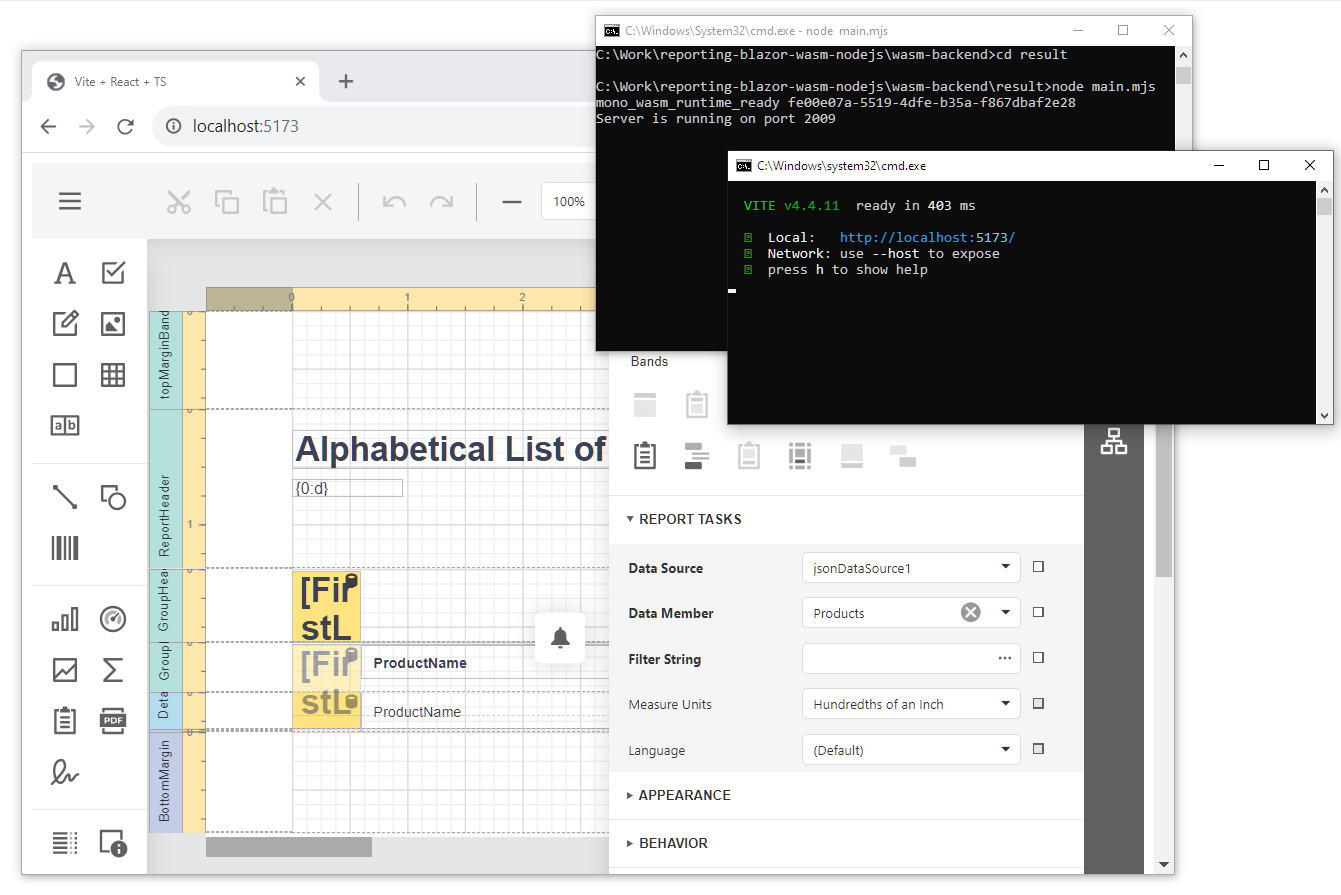
在上一节中,我们创建了一个在幕后运行的非可视化项目。不过,我们有一个包含用户界面控件的更完整的项目,它将为您提供更多有关我们添加的功能的信息。它包含 Blazor 的报表设计器和文档查看器。详细解释该项目如何工作不在本篇文章的讨论范围之内。如果您想进一步了解我们的实现情况,可在 Github 上查看该项目: Reporting for Web - Create Reports Using .NET Integration with Node.js in a WebAssembly App.
按照自述文件中列出的步骤,运行后端和客户端应用程序,并将浏览器指向客户端应用程序中指定的 URL。结果将显示如下:
结论
在本教程中,我们演示了如何将 DevExpress Reporting for .NET 集成到 Node.js 和 WebAssembly 环境中,让您轻松创建/定制报表。
GitHub 上的 DevExpress 示例库中有完整的示例项目: Reporting for Web - 在 WebAssembly 应用程序中使用 .NET 与 Node.js 集成创建报表。





 渝公网安备50010702505508