


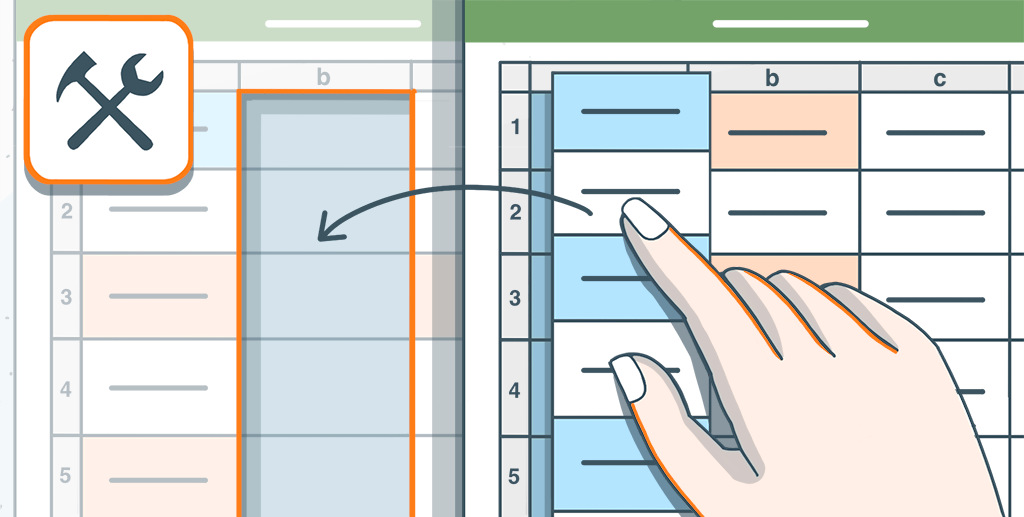
ONLYOFFICE宏打开了无限的可能性,将需要数小时的复杂任务转变为只需点击一下即可完成的流程。 最近,我们收到了一位ONLYOFFICE用户的请求,希望我们能提供一个宏,通过高效复制数据来实现工作流程自动化。
本文深入探讨了该请求的具体内容,详细介绍了我们如何开发一个宏来满足他们的需求,并探讨了ONLYOFFICE宏的更广泛意义。
构建宏
  const oWorksheet = Api.GetActiveSheet();
  const oRange = oWorksheet.GetSelection();
首先,我们将在 oWorksheet 和 oRange 变量中获取活动工作表和选区。
现在,我们将查看组成该宏的 3 个函数,即:getColHeader()、copyColumns() 和 copyValues()。
首先是 getColHeader() 函数。
  const getColHeader = (colNumber) => {
    const targetColumn = oRange.GetCols(colNumber);
    const colHeader = targetColumn.GetValue()[0][0];
    return colHeader !== null && colHeader !== "" ? colHeader : -1;
  };
getColHeader() 函数接收一个参数,即指定列号的 colNumber。 该函数会检查指定列的第一行是否存在有效值。 如果存在有效值,则返回该值;否则返回-1。
接下来,我们将了解 copyColumns() 函数的工作原理。
  const copyColumns = () => {
    let end = false;
    let i = 2;
    while (!end) {
      i++;
      const sheetName = getColHeader(i);
      if (sheetName === -1) {
        end = true;
        break;
      } else if (sheetName) {
        const columns = oRange.GetCols(i);
        columns.ForEach((cell) => {
          copyValues(cell, sheetName, 1);
        });
        for (let j = 1; j <= 2; j++) {
          const col = oRange.GetCols(j);
          col.ForEach((cell) => {
            copyValues(cell, sheetName);
          });
        }
      } else {
        console.error("Fatal error in copy horizontal logic.");
        end = true;
        break;
      }
    }
  };
copyColumns() 函数从第三列开始遍历当前工作表中的各列。 对于每一列,它会使用 getColHeader() 函数检索列标题。 如果列头有效,则使用 copyValues() 函数将该列的值和格式复制到列头指定的目标工作表中。
此外,它还会确保前两列(被视为常用列)也被复制到每个目标工作表中。 该过程一直持续到遇到无效页眉,循环才会终止。 这是宏中的主函数,并调用其他辅助函数。
注意:在此代码中,我们假设有两列共用列,而要分别复制到各工作表中的具体列则从第三列开始。 这些值可根据具体使用情况进行调整。
现在,开始使用 copyValues() 函数。
const copyValues = (range, sheetName, copyType = 0) => {copyValues() 函数将源范围中的值和格式复制到目标工作表。 它需要三个参数:range,即包含单元格数据的区域对象;sheetName,即目标工作表的名称;以及 copyType,即指定要复制的列是默认列还是特定列。
    const oValue = range.GetValue();
    const oCharacters = range.GetCharacters(0, 2);
    const oFont = oCharacters.GetFont();
    const fontName = oFont.GetName();
    const oSize = oFont.GetSize();
    const isBold = oFont.GetBold();
    const isItalic = oFont.GetItalic();
    const rowNo = range.GetRow() - 1;
    let colNo;
首先,函数会获取源单元格的值和格式(字体名称、大小、粗体、斜体)。
const targetSheet = Api.GetSheet(sheetName);
    if (!targetSheet) {
      console.error(`Sheet with name ${sheetName} not found.`);
      return;
    }
    if (copyType === 1) {
      colNo = 2;
    } else {
      colNo = range.GetCol() - 1;
    }
然后,使用从 getColHeader() 函数中获取的 sheetName 变量检索目标工作表。
如果目标工作表不存在,将记录错误并中止宏执行。
    if (oValue === null || oValue === "") {
      targetSheet.GetRangeByNumber(rowNo, colNo).SetValue(" ");
    } else {
      oFont.SetName(fontName);
      targetSheet.GetRangeByNumber(rowNo, colNo).SetValue(oValue);
      targetSheet.GetRangeByNumber(rowNo, colNo).SetFontName(fontName);
      targetSheet.GetRangeByNumber(rowNo, colNo).SetFontSize(oSize);
      if (isBold) {
        targetSheet.GetRangeByNumber(rowNo, colNo).SetBold(true);
      }
      if (isItalic) {
        targetSheet.GetRangeByNumber(rowNo, colNo).SetItalic(true);
      }
    }
  };
最后,如果一切正常且未出现错误,copyValues() 函数将在目标工作表的相应单元格中设置值和格式。
copyColumns();
最后,我们调用 copyColumns() 函数结束宏,该函数是宏的入口点。
完整的宏代码
下面是整个宏的代码:
// Macro Workflow and Info
// This macro automates the process of copying specific columns to designated sheets
// and 'common columns' to all sheets. It ensures data and formatting consistency
// across multiple sheets. You can specify the common columns, which must start from the left and be continuous.
// For specific columns, as long as you have a column apart from the common ones with a valid header and a sheet with the same name exists, the macro will take that column into consideration/.
//If you have a secific column for which a sheet doesnt exist, the console will give you an error.
// For any other problems, be sure to check the console logs.
// Example Scenario:
// Suppose we have columns 'Name', 'Type', 'Calcium', and 'Magnesium' in a sheet called 'FOOD'.
// We also have sheets named 'Calcium' and 'Magnesium'.
// Selecting all data in the 'FOOD' sheet and running the macro will:
// 1. Copy columns 'Name' and 'Type' to both 'Calcium' and 'Magnesium' sheets.
// 2. Copy the 'Calcium' column to the 'Calcium' sheet.
// 3. Copy the 'Magnesium' column to the 'Magnesium' sheet.
(function () {
  const oWorksheet = Api.GetActiveSheet();
  const oRange = oWorksheet.GetSelection();
  /**
   * Gets the value in the first row of the Column
   *
   * @param {number} colNumber
   * @returns {string}
   */
  const getColHeader = (colNumber) => {
    const targetColumn = oRange.GetCols(colNumber);
    const colHeader = targetColumn.GetValue()[0][0];
    return colHeader !== null && colHeader !== "" ? colHeader : -1;
  };
  /**
   * Iterates through all valid columns and copies them to target sheet.
   */
  const copyColumns = () => {
    let end = false;
    let i = 2;
    while (!end) {
      i++;
      const sheetName = getColHeader(i);
      if (sheetName === -1) {
        end = true;
        break;
      } else if (sheetName) {
        const columns = oRange.GetCols(i);
        columns.ForEach((cell) => {
          copyValues(cell, sheetName, 1);
        });
        // Copy the common rows in every sheet.
        for (let j = 1; j <= 2; j++) { const col = oRange.GetCols(j); col.ForEach((cell) => {
            copyValues(cell, sheetName);
          });
        }
      } else {
        console.error("Fatal error in copy horizontal logic.");
        end = true;
        break;
      }
    }
  };
  /**
   * Copies the values and formatting from the source range to the target sheet.
   * @param {object} range - The range object containing the cell data.
   * @param {string} sheetName - The name of the target sheet to copy the values to.
   * @param {number} copyType - Indicates type of copy operation. 1 for fixed column copy, default or dyanamic.
   */
  const copyValues = (range, sheetName, copyType = 0) => {
    const oValue = range.GetValue();
    const oCharacters = range.GetCharacters(0, 2);
    const oFont = oCharacters.GetFont();
    const fontName = oFont.GetName();
    const oSize = oFont.GetSize();
    const isBold = oFont.GetBold();
    const isItalic = oFont.GetItalic();
    const rowNo = range.GetRow() - 1;
    let colNo;
    const targetSheet = Api.GetSheet(sheetName);
    if (!targetSheet) {
      console.error(`Sheet with name ${sheetName} not found.`);
      return;
    }
    if (copyType === 1) {
      colNo = 2;
    } else {
      colNo = range.GetCol() - 1;
    }
    if (oValue === null || oValue === "") {
      targetSheet.GetRangeByNumber(rowNo, colNo).SetValue(" ");
    } else {
      oFont.SetName(fontName);
      targetSheet.GetRangeByNumber(rowNo, colNo).SetValue(oValue);
      targetSheet.GetRangeByNumber(rowNo, colNo).SetFontName(fontName);
      targetSheet.GetRangeByNumber(rowNo, colNo).SetFontSize(oSize);
      if (isBold) {
        targetSheet.GetRangeByNumber(rowNo, colNo).SetBold(true);
      }
      if (isItalic) {
        targetSheet.GetRangeByNumber(rowNo, colNo).SetItalic(true);
      }
    }
  };
  copyColumns();
})();
现在,让我们看看我们的宏是如何工作的!
就是这样! 我们刚刚演示了如何使用ONLYOFFICE宏实现最复杂功能的自动化。 ONLYOFFICE API是一个功能强大的工具,能够执行各种任务,并为开发更高级的宏和插件提供了巨大的潜力。 有了这个应用程序接口,用户可以充分利用ONLYOFFICE的强大功能,提高工作效率,简化工作流程。
如果您有任何问题或创新概念,我们鼓励您与我们分享。 我们重视您的意见,并期待与您合作。 祝您在探索的道路上一帆风顺!


 渝公网安备50010702505508